
Guide
Selling engraved products in WooCommerce: names, previews and laser-ready files
Engraving is personalization in its purest form: a name, a date, a short line, burned into wood, leather, glass or steel. The laser is the easy part. The hard part is everything between the customer typing a name and the file reaching the laser, and that is where a WooCommerce shop either scales or drowns in retyping.
What the laser needs
- Vector outlines. Laser software such as LightBurn engraves fills and cuts along lines, both from vector shapes. Text sent as live text depends on the font being installed on the laser computer; text converted to outlines does not.
- One colour. The laser does not care what colour the file is, only which layer a shape is on. A single-colour file drops straight onto one layer.
- The real size. A name that is 60 mm wide on the product has to be 60 mm wide in the file, or someone rescales it by eye.
A product add-ons text field gives you none of these. It gives you the word, and someone at the shop sets it in the right font, at the right size, and exports it, for every order. At ten orders a week that is an evening. At a hundred it is a job.
Showing the customer what they will get
Engraved gifts are bought for occasions: a wedding date on a cutting board, a name on a groomsman’s flask, a message inside a watch. The buyer wants to see the words on the object before paying, and a preview that looks like engraving sells better than a line of text under a photo.
- Use the material’s colour for the preview. Engraving on light wood reads dark brown, on anodised aluminium it reads silver-white, on slate it reads pale grey. Set the preview colour to match, and if the product comes in several materials, set it per variation.
- Bend it on round things. Tumblers, bottles and rings are engraved on a rotary. A flat name laid over a photo of a curved tumbler looks pasted on; one that follows the curve looks like the finished product.
- Keep it short. Engraving areas are small. Limit the characters, and let a long name shrink to fit rather than overflow.
Products that sell well engraved
| Product | Typical text | Worth knowing |
|---|---|---|
| Cutting boards | Family name, year | Large area; two lines and a small drawing work well |
| Tumblers and bottles | First name | Rotary engraving; the preview has to follow the curve |
| Leather wallets, keyrings | Initials, short name | Very small area; bold fonts only |
| Watches | Name and date | Case back or clasp; hairline fonts disappear |
| Glassware | Names, wedding date | Engraves frosted white; preview in white |
| Slate and stone | House names, pet names | Pale grey on dark; high contrast reads well |
Fonts that survive the laser
A font that looks elegant on screen can fail at a few millimetres. Strokes thinner than the laser’s line merge or vanish, and tight script fonts fill in on wood. Choose faces with an even, generous stroke, test each one on the real material at the real size, and offer only the ones that pass. Offering three good fonts beats offering thirty and refunding the bad ones.
From order to laser without retyping
The workflow that scales looks like this:
- The customer picks a design, types the name and sees it on the product in the engraving colour.
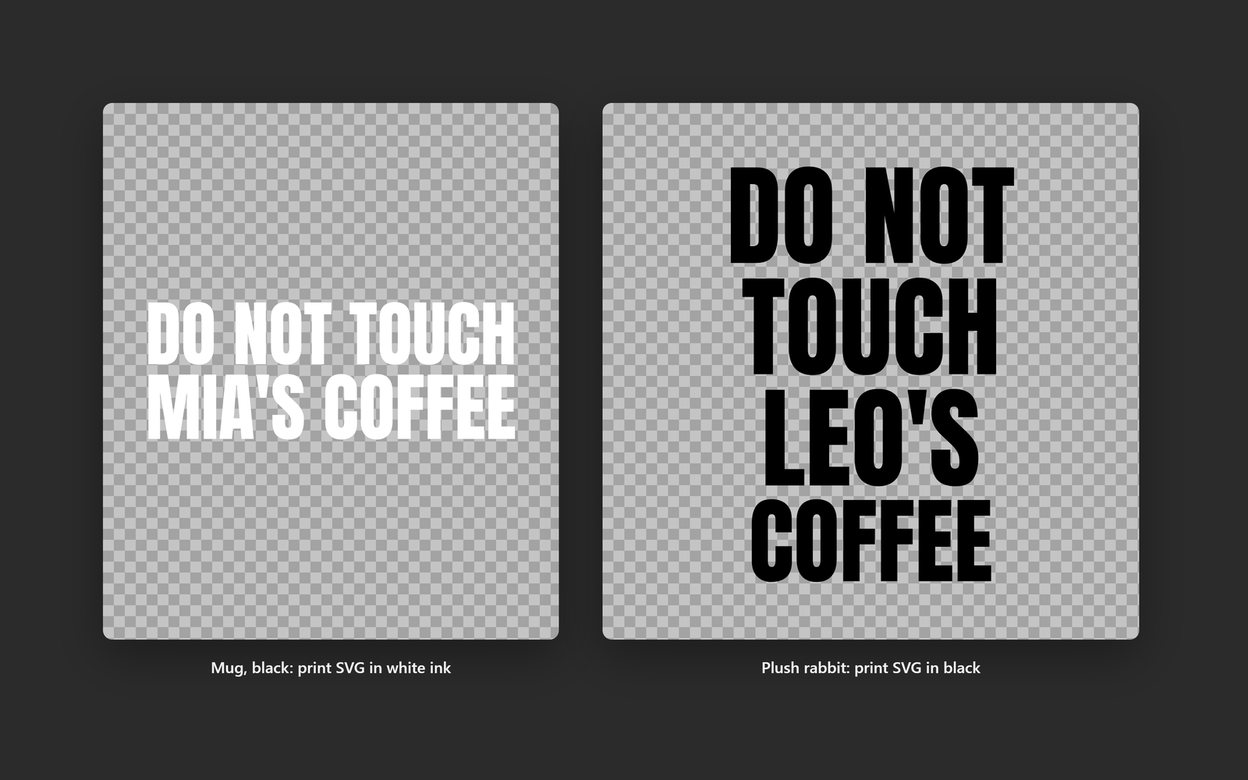
- The order arrives with an SVG or a PDF, as you choose: the text already converted to outlines, one colour, in the shape of that product’s print area.
- You open the file in your laser software, check it, and run it.
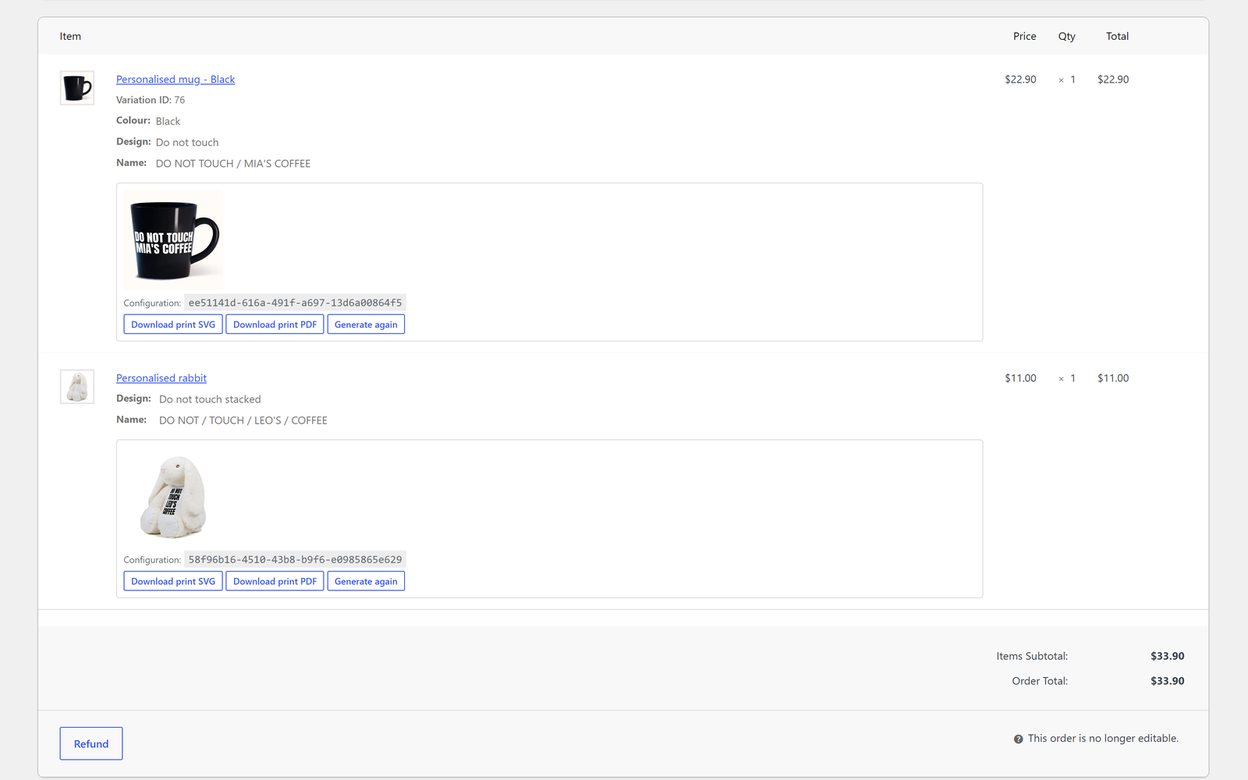
Pomp Product Personalizer is built for that path. You set up each product once, where the engraving sits, how it bends on a curved surface, and its colour on each variation, and then every design in your catalogue works on it. The print file with each order is vector outlines in the shape of the print area, so it opens in laser and vinyl cutting software without the font installed. Pro lets the customer write their own wording or upload their own artwork, checked and rebuilt before it reaches the file.
The same approach works for printed products too; custom names on jerseys, hats, watches and bottles covers them side by side.